Viewing Service Details
CygNet service information details can be accessed from CygNet Explorer or from the CygNet Service Diagnostics utility.
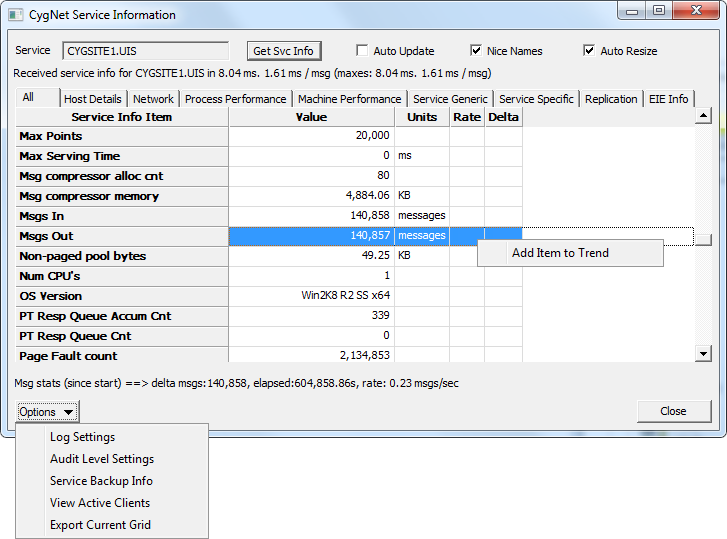
In CygNet Explorer, right-click on a service name in the service hierarchy (left pane) to access the context menu, and then select Service Details to access the CygNet Service Information dialog box (shown below).
Alternatively, you can access the same dialog from the CygNet Service Diagnostics utility. See CygNet Service Diagnostics Utility for more information.
CygNet Service Information
The CygNet Service Information dialog box displays service info item details for a specified CygNet service, and can be viewed as various information sets. For any graphable service info item on the various views, you can also optionally add service info items to a trend to view results graphically. See Info Items for more information and a full list of available info items for each CygNet service type.
|
CygNet Service Information |
Service Information Properties
The properties on the CygNet Service Information dialog box are described below.
| Property | Description |
|---|---|
|
Service |
Type the service name into the text box, in Site.Service format, to view its service details. |
|
Get Svc Info |
Click Get Svc Info to retrieve and display information for the specified service. |
|
Auto Update |
Click the check box to select/clear automatic updating of service information. When the check box is selected, service information is continuously updated; when it is cleared, service information is updated when you click Get Svc Info. |
|
Nice Name |
Click the check box to select/clear whether to display the "nice name" for each service info item rather than listing its data item string. |
|
Auto Resize |
Click the check box to select/clear automatic resizing of column widths based on their content. |
|
[Service information statistics] |
Describes details about the status of information retrieval for the specified service |
|
[Service information property pages] |
Information results are arranged in sets of related information, available in a series of service information property pages. Click on any column heading to reorder the list based on the selected column's values. |
|
[Service message statistics] |
Describes details about the status of messaging for the specified service |
|
Options |
Click to access a drop-down menu of additional service information options. |
Service Information Property Pages
Service information details are presented on multiple property pages, in sets of related information.
Click a tab to view the associated property page, containing one of the following information sets.
- All - view all service information details together in one list
- Host Details - view information details about the computer hosting the specified service
- Network - view information details about the network transactions of the specified service
- Process Performance - view performance information about the processes undertaken by the specified service
- Machine Performance - view performance information about the machine hosting the specified service
- Service Generic - view information details applicable to all services
- Service Specific - view information details specific to the specified service
- Replication - view information details about replication for the specified service
Additionally, property pages may include one of the following information sets, where applicable.
- DBS Tables - for a DBS-based service, view additional relevant data about database tables and indexes for the specified service. See DBS Tables for more information.
- EIE Info - for a Universal Information Service (UIS), view information about the EIEs configured for the specified service. Details include EIE Type, .dll file name, software version number, timestamp of the .dll file, and the number of device objects associated with each EIE type.
Adding Service Info Items to a Trend
While viewing service information sets, you can optionally select service info items to view as a trend on an info item graph (as long as the selected item is appropriate to graph). See Trending Service Info Items in the Service Monitoring section for more information about using trends.
To View a Service Info Item as a Trend
- In a grid listing service information results, right-click any graphable Service Info Item value, or range of values, to access the context menu option to add the selected service info item(s) to a trend. Multiple selection (maximum of 7 service info items) is supported.
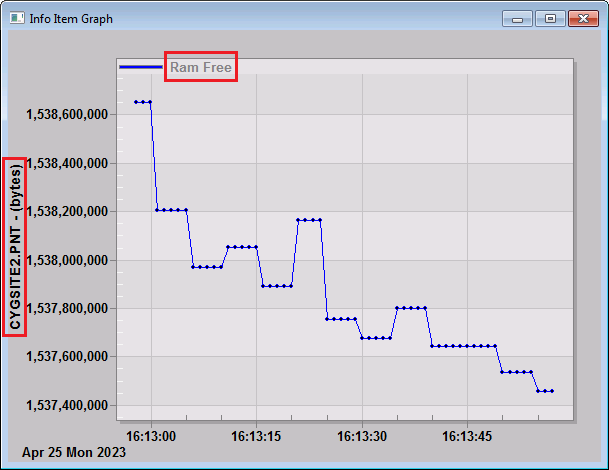
- Click Add Item to Trend to view the Info Item Graph for the selected Info Item(s). For multiple selections, related items are displayed in shared graph sections, and distinct items are shown in individual graph sections. The selected service and service info item(s) are clearly identified on the graph, as shown in red boxes in the sample image.
|
Info Item Graph |
Additional Service Information Options
Click the Options button in the lower left corner of the CygNet Service Information dialog box to access a drop-down menu containing additional service information options. Click one of the options to view additional information about the selected service.
- Log Settings - Click to access the Service Log Settings dialog box to view log settings for the service. See Service Log Settings and the Logging Keywords for each service for more information.
- Audit Level Settings - Click to access a Service Audit Levels dialog box to view the configured Audit Levels for the service. See Defining Audit Levels, Service Audit Levels and the Auditing Keyword for each service for more information.
- Service Backup Info - Click to access a Service Backup Info dialog box to view backup status and details, and to perform a service back-up on demand. See Service Backups on Demand for more information.
- View Active Clients - Click to access a Service Active Users dialog box to view active users of the selected service. See Viewing Service Active Users for more information.
- Export Current Grid - Click to access a Save As dialog box to export the contents of the current grid to a CSV file.
Scripting Service Details
The following scripting options are available for data interface functions related to the CygNet Service Information dialog box.
| COM API | Description and Link |
|---|---|
|
CxDialogs |
The ShowServiceInfoDialog method displays the CygNet Service Information dialog box for the specified site and service pair. See CxDialogs.ShowServiceInfoDialog for more information. |


